
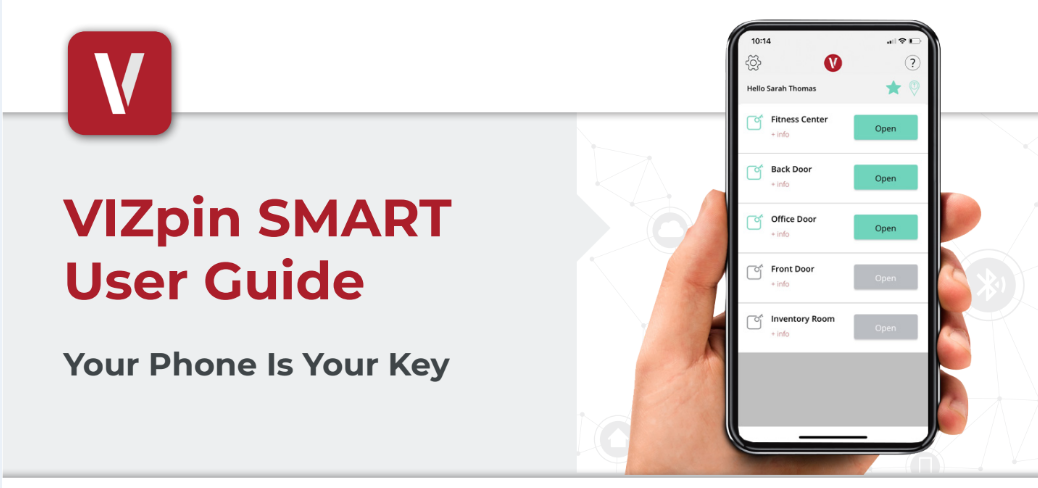
Vizpin is a smartphone app that enables members to have access to ASPOA amenities: the Lakeside Park, boat ramp and the Sports Court. (The pool uses another system, not Vizpin.)
One Vizpin is included in your ASPOA membership. There is an additional fee for a second Vizpin user. There is a maximum of two Vizpin users per member.
If you need guidance on how to register or use Vizpin, contact the ASPOA Management Company for support.
PDF document: How to use Vizpin. The instructions below are from this PDF document.
Printout of Instructions
Download & Install
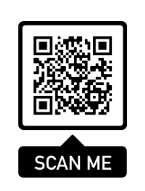
Scan this code or visit the Google Play Store or iTunes App Store on your phone and search for “VIZpin SMART” and install
Register
1. Open the VIZpin SMART app
2. Tap “Allow” for the permission requests when prompted
3. Tap “Sign Up”
4. Complete all registration fields and click “Register”
5. You will receive a text message with a security code
6. Enter the security code in the VIZpin SMART app and tap “Confirm”
7. Enter the Location ID ___BXY-9J8_____ provided by the Building Manager and tap “Request Access”
8. Login using the phone number and password entered during registration (select the “Remember Me” checkbox for quick access in the future)
Using Your Smartkeys
After the Building Manager has granted you access, swipe down to refresh your app and retrieve your Smartkeys (cellular data or WiFi connection required)
- Tap the “Open” button when within Bluetooth range to unlock
- Tap the “+ Info” link under the Smartkey name to view details or add to your Favorites List
- Tap the icon to sort your Smartkeys by closest in range
- Tap the icon to view only the Smartkeys on your Favorites List
- Additional features such as Widgets and Notifications are available – visit VIZpin.com/tech-tip-videos to learn more
New Phone or Forgot Your Password?
1. On the VIZpin SMART login screen, tap “Forgot Password”
2. You will receive a text message that contains a security code
3. Enter the security code in the VIZpin SMART app and confirm
4. Enter your new password and confirm
5. Tap “Change Password” and login with your new password
General Troubleshooting
Click on the help icon (looks like a question mark in a circle) in the top right to access our knowledge base, or you can try these common solutions first:
- Check that Bluetooth and Location Permissions are enabled for the VIZpin SMART app in your phone settings
- Refresh the VIZpin SMART app by swiping down on the main screen
- Turn Bluetooth off and back on again
- Force close the VIZpin SMART app then reopen